The Eric Wroolie Blog

Overpass Experiences

  • Blog
  • Videos
  • Overpass Apps

Powered by Overpass Apps

Automate Skype Status with PowerShell

September 18, 2009 by wroolie 16 Comments

One of the big problems I have with Skype is its lack of a scheduling feature.  I have a Skype dual phone which will ring when someone calls me on Skype, but I don’t want the phone ringing in the middle of the night because someone from another time zone sees my status as “Online” decides to call.  I use Skype frequently for work with virtual teams, so I can’t just turn it off because I don’t want to forget to turn it back on.  My status should show as “Away” when I haven’t used my PC for a while, but this isn’t always consistent and it doesn’t cater for insomnia-induced tinkering on the pc.
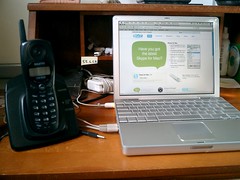
Wireless Skype Phone
Creative Commons License photo credit: iBjorn

Ideally, Skype would have a feature to set “Opening Hours” on your account—I only want to show up as available between 8am and 8pm.  I bought the Pamela extra which does some scheduling, but you can set only one event per day—ie. I can set it to go offline at 8pm, but not to turn back on at 8am.

Since Skype offers a client API component, it is possible to create a scheduler to set your online status at different times using Windows Scheduler and a scripting tool.  I wrote this before in VBScript, but this being the dawn of Windows 7 with pre-installed PowerShell, I rewrote it as a PowerShell script.

If you are on XP or Vista and haven’t installed PowerShell, you will need to do this before you can run these scripts.  Installation instructions for PowerShell are here.  You will also need to set the execution policy.  You can find instructions for this here.  I am running XP.

I hope this helps . . .

Step 1: Install the Skype4Com component

Skype still uses a COM component called Skype4Com which needs to be downloaded and registered on your local PC.  The component can be found at https://developer.skype.com/Download.  I’m using version 1.0.32, but you can probably use a later version.

Download the component, extract it to a directory (ie. “c:skype”) and type the following into the Run window:

regsvr32  c:skypeSkype4COM-1.0.32Skype4COM.dll

Make sure the directory point to the actual dll file to you downloaded.  You should get a response that it was registered successfully:

image

Step 2: Write the PowerShell script

Now, write the PowerShell script to use the component.  I’ve created two scripts—one sets my status to “Online”, the other sets it to “Offline”.  You can probably create a single script with a parameter passed in if you wish (but I couldn’t be bothered to figure out how to do this).

In the script, you have to create the Skype object, identify the current user, and change the status.

In my first script, I use the following code:

   1: #Create Skype Object

   2: $skype = New-Object -COM "Skype4COM.Skype"

   3:

   4: #Get the logged in user

   5: $currentUser = $skype.CurrentUserProfile

   6:

   7: #Get the Status vars

   8: $onlineStatus = $skype.Convert.TextToUserStatus("ONLINE")

   9:

  10: #Now Change your status

  11: $skype.ChangeUserStatus($onlineStatus)

The main Skype call here is the “ChangeUserStatus” method.  I named the first script “SetSkypeStatus_on.ps1”.

The second script is almost identical, but it sets the status to “Offline”:

   1: #Create Skype Object

   2: $skype = New-Object -COM "Skype4COM.Skype"

   3:

   4: #Get the logged in user

   5: $currentUser = $skype.CurrentUserProfile

   6:

   7: #Get the Status vars

   8: $offlineStatus = $skype.Convert.TextToUserStatus("OFFLINE")

   9:

  10: #Now Change your status

  11: $skype.ChangeUserStatus($offlineStatus)

I named the second script “SetSkypeStatus_off.ps1”.

There are several other parameters you can pass into the “ChangeUserStatus” method.  Here are the values I know about:

Status Code Sample
OFFLINE $skype.Convert.TextToUserStatus(“OFFLINE”)
ONLINE $skype.Convert.TextToUserStatus(“ONLINE”)
RINGING $skype.Convert.TextToUserStatus(“RINGING”)
INPROGRESS $skype.Convert.TextToUserStatus(“INPROGRESS”)
BUSY $skype.Convert.TextToUserStatus(“BUSY”)

Of course, you can automate most actions on the Skype client using the component (not just setting your online status).  You can schedule calls, send text messages, etc.  But I’m only concerned with my online status.

Step 3: Set up Windows Scheduled Tasks

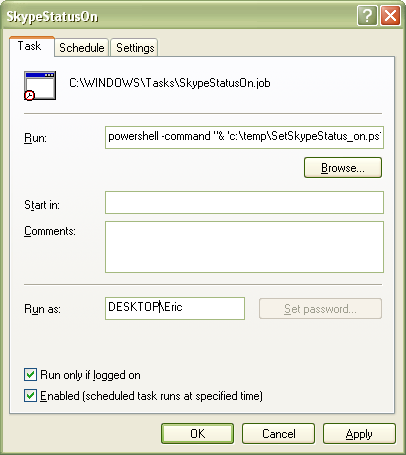
Now you have two scripts to go Offline and Online.  You just need to have something trigger them.  I use Windows Scheduled Tasks.  In Control Panel, go to the Scheduled Tasks window.  You’ll see a list of scheduled tasks for your pc.  Right client and select “Add”—>”Scheduled Task” (Don’t go through the “Add Scheduled Task” wizard).  Name your task “SkypeStatusOn”.  Right-click the task and choose “Properties”.

Now, in the “Run:” box, type the following command:

powershell -command “& ‘c:tempSetSkypeStatus_on.ps1’ “

Make sure the path is pointed to you PowerShell script you’ve created.

image

You can now use the “Schedule” tab to schedule when you want the script to run.  Click “OK”.

Now do the same for the other script.  You can test these scripts by right-clicking the task and selecting “Run”.  You should be able to watch your Skype status go from offline to online.

By the way, the first time you run this, Skype will ask if you want PowerShell to have access to Skype.  Click “Allow”.

If everything works successfully, your pc should set your online status and give you the “Opening Hours” that Skype forgot.

I hope you find this useful.

Filed Under: PowerShell, Software Dev & Productivity Tagged With: Automation, PowerShell, Skype

Line Breaks in Webby

September 18, 2009 by wroolie 2 Comments

For the past few weeks, I’ve been using a tool called Webby for static html pages.  Webby is a Ruby-based tool which produces static html pages based on templates you create.  Think of it as using master pages in ASP.Net, except that the final product is files with a .html extension instead of .aspx (and you don’t get the asp.net processor kicking in each time this static page is called).

It’s a great tool, because most of my sites need to have a consistent look and feel.  I don’t want to copy html from one file to another and I can use a master page-like concept.  And it gives me the chance to toy around with Ruby a little bit (but not much).

In Webby, you create a layout page and the other pages as .txt files with html.  Run the command “webby autobuild” in a command window and each time you make a change to any of the files, it will create a folder called output with all of your processed html pages.

A problem I did have with the tool is that it was adding <br /> tags into my html where the line breaks where in my files.  I absolutely hate it when something tries to inject html into my code.  This is why I didn’t use Frontpage and won’t use tools like Dreamweaver.  I know html is a lost art but . . .

So, in my files, I would type

<p>I would type a paragraph that might be
lengthy, so I use multiple lines in the code
but don't expect the browser to interpret these.
I just want it to look for the tags.</p>

What I got back in return was

<p>I would type a paragraph that might be <br />
lengthy, so I use multiple lines in the code<br />
but don't expect the browser to interpret these.<br />
I just want it to look for the tags.</p><br />

It took me a few hours to figure out why this was happening (I couldn’t find anything on Google with a “BR tags in Webby” search).

The problem is not with Webby, but with a tool called RedCloth, which Webby uses.  Redcloth does the html processing with something called Textile.  This is not a problem, but a feature in Redcloth from very 4 onwards.

After searching for hours (and contemplating whether to just transfer everything to aspx pages), I found that Webby was automatically adding a “- textile” filter to all of the pages:

---
title:      <%= title %>
created_at: <%= Time.now.to_y %>
filter:
  - erb
  - textile
---

The simple solution, was the remove the textfile flag from all pages.  Remove the flag from the “templates/page.erb” file in the project and you should remove it from all pages in the project.  Then you are master of all your html, my son.

I hope this

Filed Under: Software Dev & Productivity Tagged With: BR, Line Break, Redcloth, Ruby, Textile, Webby

Slip and fall down carefully

September 7, 2009 by wroolie 4 Comments

20090828_8

One of the things I’ve heard about China before arriving was that the English translations I would see on signs and literature might not be the best use of English.  While in Beijing, we saw lots of examples of signs that were just funny.  In the pool area of our hotel is a sign that says “Slip and fall down carefully”.

While at the Beijing Amusement Park, most of the rides included Alcoholism as one of the symptoms you might have to prevent you from going on a ride (“You must not ride this if you suffer from Heart problems, pregnancy, or alcoholism.”  I kept imagining recovering alcoholics staying off these rides in case they caused a relapse.

Most of the Westerners we saw in Beijing were not English speakers (or at least not as a first language).  We heard people speaking Russian, French, and Swedish . . . but all the signs that were translated, were shown in Chinese and English.  My son pointed out to me, when he saw a sign that said to turn off you cell phone instead of mobile phone, that they were specifically translated into American English.

Beijing 239Some of the signs were okay, but so many were either vague (a sign along a river bank says “Please away from the water”) or complicated (the instructions for how to pay for food in the Food Republic food court at the APM shopping centre on Wanfujing street is impossible to read).  Some are intentionally cute and funny, like a sign in the Olympic village that says “The Grass is smiling at you”.

This is often referred to as Chinglish.  The BBC ran story while we were still over there with several other photos of strange Chinglish signs.  The story is here.

Outside the Forbidden City (on the East Gate) is a set of posh toilets.  (The only reason I call them posh is because it costs 1 yuan –about 10p– to use them.  The sign above the doors in Chinese says that it’s the room for men to urinate in.  But, here greeting you as you enter one of China’s most revered treasures, is my favourite sign of all:

Beijing 405 Beijing 404

The kids love saying it, now.

Filed Under: China Tagged With: Beijing, China, Chinglish

  • « Previous Page
  • 1
  • …
  • 39
  • 40
  • 41
  • 42
  • 43
  • …
  • 112
  • Next Page »

Recent Posts

  • The Last Human Developer
  • My Gig and the Imposter Syndrome
  • Getting Picked Last for Teams in PE
  • One Little Growth Opportunity at a Time
  • I’m sorry if I look like I know what I’m doing